
word中的图片如何保存为jpg格式 把word导出成图片的流程
由于工作中需要从大量docx文档中提出图片,于是到网上搜索,找了一大堆都是分析xml文件并提取的,太过于复杂,实际上有更简单的方法,我们需要用到python-docx这个第三方库,但该库并未开发提取图片功能,不过可以通过其他方法出得到图片数据并保存为图片 。
本文为原创,如需转载请注明出处(仅处理docx文档,不能处理doc文档,如果需要可执行文件的,可将代码文件通过pyinstaller进行编译) 。
文章插图
文章插图
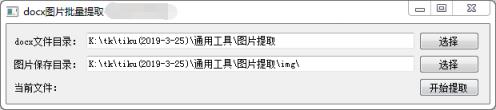
软件界面
下面这段代码是核心:
for file in os.listdir(filePath):try:#跳过非docx文件if ".docx" not in file:continue# 创建imgPathsubImgPath = imgPath + re.sub(".docx","",file)if not os.path.exists(subImgPath):os.makedirs(subImgPath)doc = docx.Document(filePath + file)#打开文件for rel in doc.part._rels:rel = doc.part._rels[rel]#获得资源if "image" not in rel.target_ref:continueimgName = re.findall("/(.*)",rel.target_ref)[0]with open(subImgPath + "/" + imgName,"wb") as f:f.write(rel.target_part.blob)UI.currentFile.setText("当前文件:" + imgName)except:continue后来经过改进,使用PyQt5制作了界面,下面为源代码:import docx,re,os,sys,ui_imgExtractfrom PyQt5.QtWidgets import QApplication,QMainWindow,QWidget,QMessageBoxfrom PyQt5.Qt import QFileDialogdef run():filePath = UI.filePath.text()imgPath = UI.imgPath.text()if not os.path.exists(filePath):QMessageBox.about(main, "错误", "请选择docx文件目录!")returnif not os.path.exists(imgPath):os.makedirs(imgPath)for file in os.listdir(filePath):try:#跳过非docx文件if ".docx" not in file:continue# 创建imgPathsubImgPath = imgPath + re.sub(".docx","",file)if not os.path.exists(subImgPath):os.makedirs(subImgPath)doc = docx.Document(filePath + file)#打开文件for rel in doc.part._rels:rel = doc.part._rels[rel]#获得资源if "image" not in rel.target_ref:continueimgName = re.findall("/(.*)",rel.target_ref)[0]with open(subImgPath + "/" + imgName,"wb") as f:f.write(rel.target_part.blob)UI.currentFile.setText("当前文件:" + imgName)except:continueQMessageBox.about(main, "完成", "图片提取已完成!")def init():UI.btnRun.clicked.connect(run)#绑定开始提取按钮UI.btnFilePath.clicked.connect(choiceFileDir)# 绑定选择docx文件目录UI.btnImgPath.clicked.connect(choiceImgOutPutDir)#绑定选择图片保存目录# docx文件默认目录UI.filePath.setText(os.getcwd())#默认输出目录if not os.path.exists(os.getcwd() + "img\"):os.makedirs(os.getcwd() + "img\")UI.imgPath.setText(os.getcwd() + "img\")#选择docx文件目录def choiceFileDir():dir = QFileDialog.getExistingDirectory(main, "选择docx文件目录", os.getcwd())UI.filePath.setText(dir + "/")#选择图片保存目录def choiceImgOutPutDir():dir = QFileDialog.getExistingDirectory(main, "选择输出目录", os.getcwd())UI.imgPath.setText(dir + "/")if __name__ == "__main__":app = QApplication(sys.argv)main = QWidget()UI = ui_imgExtract.Ui_Form()UI.setupUi(main)main.show()init()sys.exit(app.exec_())下面是界面文件ui_imgExtract.py:【word中的图片如何保存为jpg格式 把word导出成图片的流程】
# -*- coding: utf-8 -*-# Form implementation generated from reading ui file 'ui_iask.ui'## Created by: PyQt5 UI code generator 5.11.3## WARNING! All changes made in this file will be lost!from PyQt5 import QtCore, QtGui, QtWidgetsclass Ui_Form(object):def setupUi(self, Form):Form.setObjectName("Form")Form.resize(604, 100)self.layoutWidget = QtWidgets.QWidget(Form)self.layoutWidget.setGeometry(QtCore.QRect(10, 10, 581, 83))self.layoutWidget.setObjectName("layoutWidget")self.gridLayout_4 = QtWidgets.QGridLayout(self.layoutWidget)self.gridLayout_4.setContentsMargins(0, 0, 0, 0)self.gridLayout_4.setObjectName("gridLayout_4")self.label_8 = QtWidgets.QLabel(self.layoutWidget)self.label_8.setObjectName("label_8")self.gridLayout_4.addWidget(self.label_8, 0, 0, 1, 1)self.filePath = QtWidgets.QLineEdit(self.layoutWidget)self.filePath.setObjectName("filePath")self.gridLayout_4.addWidget(self.filePath, 0, 1, 1, 1)self.btnFilePath = QtWidgets.QPushButton(self.layoutWidget)self.btnFilePath.setObjectName("btnFilePath")self.gridLayout_4.addWidget(self.btnFilePath, 0, 2, 1, 1)self.label_9 = QtWidgets.QLabel(self.layoutWidget)self.label_9.setObjectName("label_9")self.gridLayout_4.addWidget(self.label_9, 1, 0, 1, 1)self.imgPath = QtWidgets.QLineEdit(self.layoutWidget)self.imgPath.setObjectName("imgPath")self.gridLayout_4.addWidget(self.imgPath, 1, 1, 1, 1)self.btnImgPath = QtWidgets.QPushButton(self.layoutWidget)self.btnImgPath.setObjectName("btnImgPath")self.gridLayout_4.addWidget(self.btnImgPath, 1, 2, 1, 1)self.btnRun = QtWidgets.QPushButton(self.layoutWidget)self.btnRun.setObjectName("btnRun")self.gridLayout_4.addWidget(self.btnRun, 2, 2, 1, 1)self.currentFile = QtWidgets.QLabel(self.layoutWidget)self.currentFile.setObjectName("currentFile")self.gridLayout_4.addWidget(self.currentFile, 2, 0, 1, 2)self.retranslateUi(Form)QtCore.QMetaObject.connectSlotsByName(Form)def retranslateUi(self, Form):_translate = QtCore.QCoreApplication.translateForm.setWindowTitle(_translate("Form", "docx图片批量提取"))self.label_8.setText(_translate("Form", "docx文件目录:"))self.btnFilePath.setText(_translate("Form", "选择"))self.label_9.setText(_translate("Form", "图片保存目录:"))self.btnImgPath.setText(_translate("Form", "选择"))self.btnRun.setText(_translate("Form", "开始提取"))self.currentFile.setText(_translate("Form", "当前文件:"))
- cdr裁剪图片要怎么操作
- word表格上下错开怎么对齐
- cdr插入图片应该怎么操作
- masque化妆品中的意思
- 手机能ps图片吗
- 竹笋的种类图片及名称
- cdr中的剪切蒙版要怎么进行用
- 怎么取消修订模式
- word怎么查找错别字
- 聚二甲基硅氧烷在护肤品中的作用